Interaction
minacode runs as a conversation in your terminal. You type a request, the agent works through it with tools, and you stay in the loop the whole time — steering, answering questions, and reviewing changes.
Follow-ups
You can keep typing while minacode works. A submitted follow-up joins the current task if
another model step begins; otherwise it becomes the next task. A draft still in the editor is
never submitted by interrupting — the first Ctrl-C discards it instead.
Everything below the divider is waiting. The agent picks those messages up at its next step, and they move up into the log above the divider once they are in.
Key |
When |
Effect |
|---|---|---|
|
While the agent works |
Queue a follow-up for the next model step |
|
While the agent works |
Discard a draft in the editor; with the editor empty, interrupt the task — retracting the message if the agent has not answered yet, or recording the interrupt once it has |
|
Idle prompt |
Clear input line |
|
Any prompt |
Clear the whole input line, leaving the turn running |
|
While working, with an empty editor |
Recall the newest queued message |
Interrupting splits two ways. If the agent has not answered yet, Ctrl-C retracts the
message: it is discarded and never reaches the conversation record or the saved session, as
if it was never sent (your input history still recalls it with Ctrl-P). Once the agent has
spoken or run a tool, Ctrl-C interrupts: the work already shown stays, and the turn is
marked as interrupted so minacode knows it ended early.
Bash output
While Bash runs, its live output stays above the working divider. When the command
is running, a blank row keeps its last live-output line clear of that divider. When the
command finishes, minacode keeps the transcript quiet by folding that preview into a gray
output · Ctrl-O to expand row. Press Ctrl-O to browse the ten most recent completed
Bash previews, newest first. Use j/k or the arrows to select one and Enter to open
it; Esc returns to the list, while Ctrl-O or q closes the viewer. The complete
result remains stored under its tr.N key even when the preview is folded. Each viewer
screen leaves a blank row above its subdued labeled rule, separating it from terminal
scrollback.
Commands
Type / commands at the prompt to inspect state, switch models, manage the
session, or configure runtime behavior on the fly. Run /help for the built-in
reference.
Looking around
/status — Shows everything about the runtime at a glance: workspace path,
session id, active provider and model, calculated compaction-budget fill percentage,
conversation history, prompt-cache hit ratio, code index state, background jobs,
and whether an update is available.
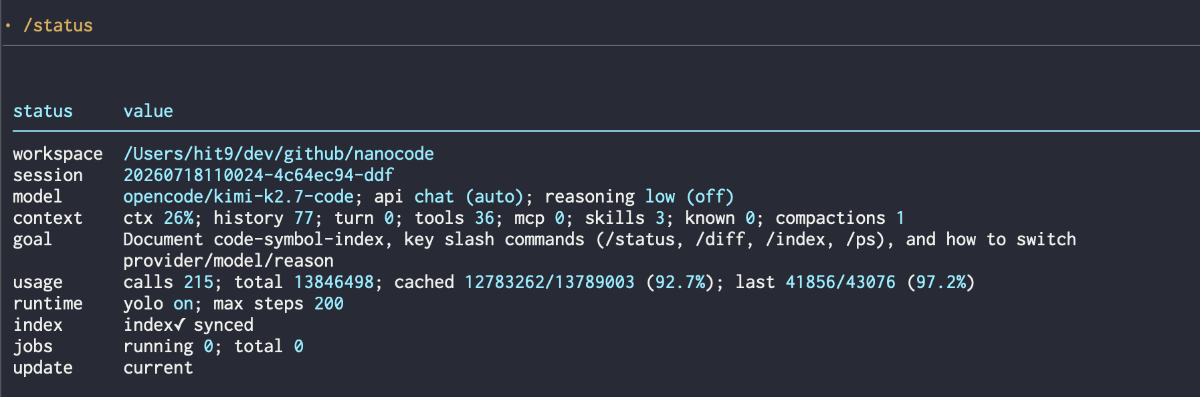
The /status output at a glance.
/diff — Review changes from the latest turn or the whole session. See
Reviewing changes below.
The two tabs pick the range; each row is one changed file with its added and removed line
counts. Enter opens the selected file’s diff.
/ps — Lists active background jobs (see Tools).
Each row shows job id, state, command, and elapsed time.
/skills — Lists every installed skill by name, source, and
description.
/config — Shows the active configuration: provider blocks, runtime settings,
and their resolved values.
The code index
/index [force] — Build or rebuild the code symbol index that powers
InspectCode. The first build walks every source file; later syncs are fast. Add
force to rebuild from scratch. See Code symbol index
for details.
Switching models
/provider [NAME] — Show or switch the active provider. Without an argument it
lists every configured provider (from your configuration)
and lets you pick one interactively. With a name it switches immediately.
/model [MODEL] — Show or switch the model for the current provider. Without
an argument it opens an interactive picker with configured and discovered models.
Changing the model also prompts you to pick a reasoning effort.
/reason [EFFORT] — Show or set reasoning effort (OpenAI o-series and DeepSeek
R1). Values: off, minimal, low, medium, high, xhigh. Without an
argument it opens a picker.
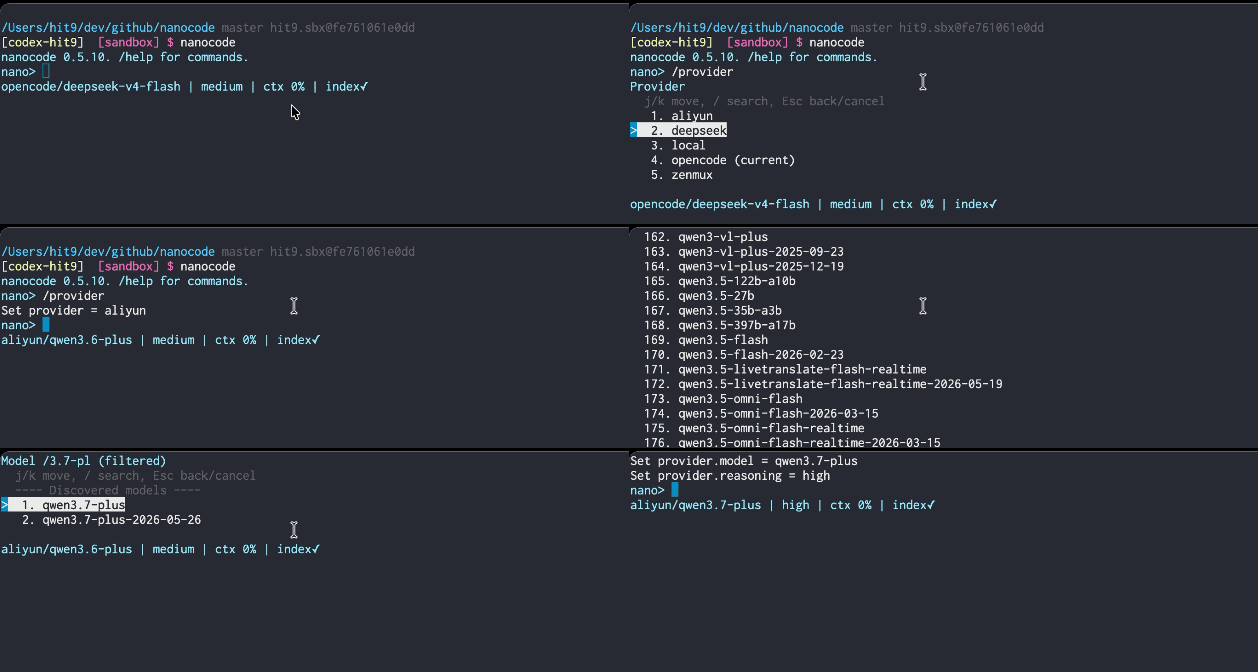
Switching providers and models mid-session.
Managing the session
/compact — Summarize and shrink the conversation immediately. minacode keeps
long sessions within budget on its own, but /compact trims on demand.
/yolo — Toggle confirmation prompts. See Safety before turning
this off permanently.
/strict — Toggle strict tool-call schemas (OpenAI / DeepSeek).
/set KEY VALUE — Set provider.* or runtime.* for the session. Example:
/set provider.model deepseek-v4-flash.
/resend — Cancel and re-send the in-flight model request without restarting the
turn. Type it while a model request is waiting; it has no effect while the agent is
running a tool or otherwise between model calls. The divider briefly reports the retry,
keeps its elapsed timer and waiting pulse, then returns to working for the replacement
request:
MCP
/mcp — Manage MCP server connections. Sub-commands:
Usage |
Effect |
|---|---|
|
List servers and connection status |
|
Connect servers now |
|
Disconnect a server |
|
List tools from a connected server |
Help and exit
/help — Show the built-in command and tool reference.
/exit, /quit — Leave minacode. Your session is saved automatically and can
be resumed with -c or --resume.
Mentions
Two inline references, both Tab-completed as you type:
Keys and input editing
Interactive selectors (model picker, MCP manager, diff viewer) support:
j/kor arrow keys to moveg/Gto jump to top / bottom/to search,Enterto accept,Escto cancel
The input line supports:
history recall and completion
Ctrl-C— clear the current input; with the input empty while running, interrupt the turn (retracting it if the agent has not answered yet)Ctrl-U— clear the whole input line, in the idle prompt and the follow-up editor alikeCtrl-D— exit from an empty promptCtrl-R— reverse-search your historyCtrl-O— browse the ten most recent completed Bash output previews; press it again to closeCtrl-X Ctrl-EorCtrl-G— edit the current input in$VISUAL/$EDITOR(falls back to vim)

Typing a follow-up message in an external editor.
When you open the editor in reply to the agent, its most recent reply is appended below a git-style scissors line, so you can read what you are answering while you compose (the full-screen editor hides that scrollback):
Everything from the scissors line down is stripped before the message is sent; a scissors line you type yourself is left untouched. Long replies are capped to their most recent lines.
Sessions
Your work is saved automatically — the conversation, edits, and diffs
are tied to the project directory you started in, so an interrupted session picks up where it
stopped. Inactive sessions older than seven days are removed at startup by default; set
runtime.session_retention_days = 0 to keep them indefinitely.
Resume from the command line:
minacode -c            # resume the latest session in this project
minacode --resume      # same, explicit
minacode --resume UID  # resume a specific session by id, from any directory
Sessions are stored per project, so -c and a bare --resume never reach into another project’s
history — even when your most recent session anywhere was somewhere else. A UID is looked up
across every project, so you can resume one by id from wherever you are.
Resuming replays the conversation into your scrollback, including the diff each edit made. Long
diffs are trimmed there; /diff always has the full text.
Reviewing changes
/diff opens an interactive, tabbed viewer with two views:
Latest — what changed during the most recent round of your requests
Session — the net diff for everything since the session began
Navigate with j/k, g/G, and / search; press Esc to close.
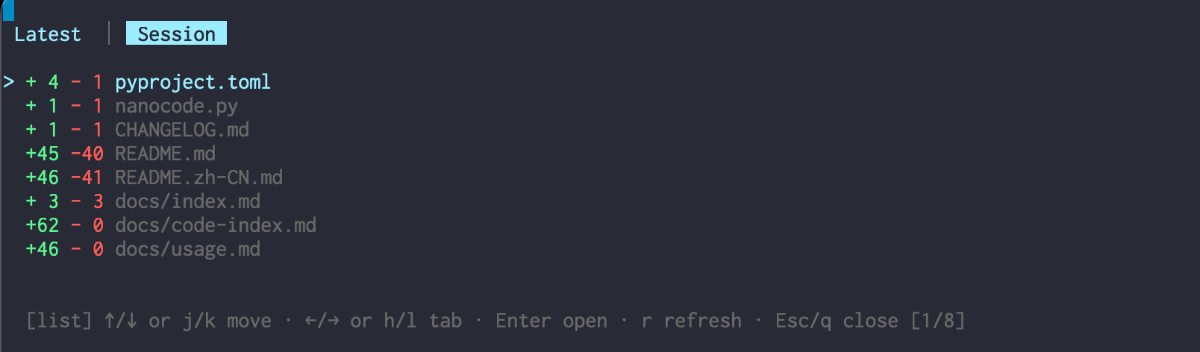
Choosing a file to diff.
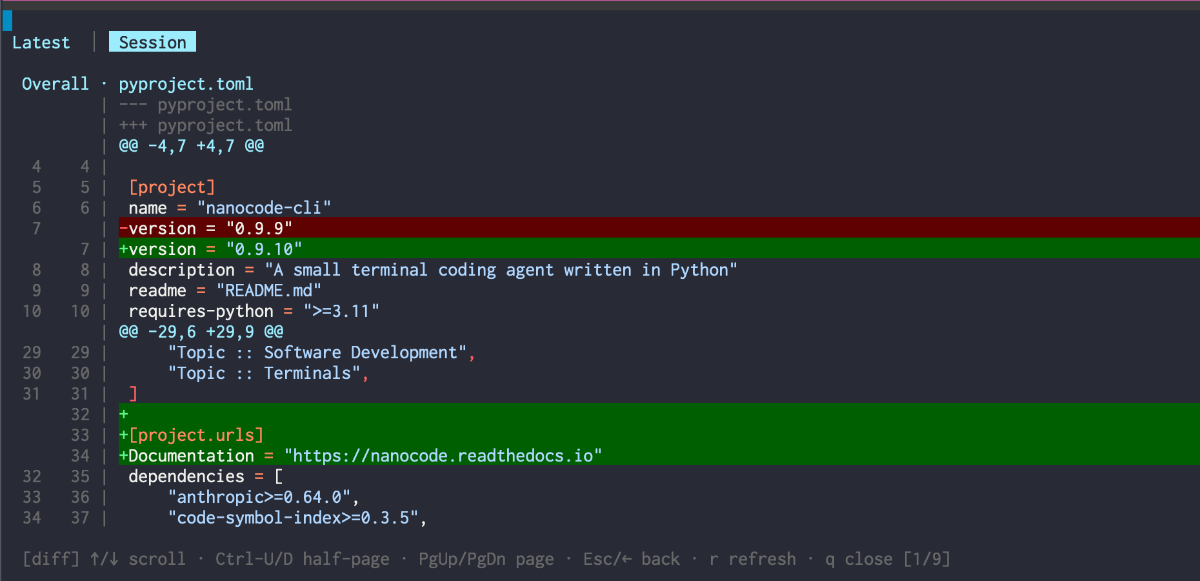
Side-by-side detail view of a changed file.
Long sessions
minacode keeps long conversations within a working budget on its own, summarizing older
context as needed so a session can run indefinitely. Run /compact to trim it now, or
/status to see current context and token usage.